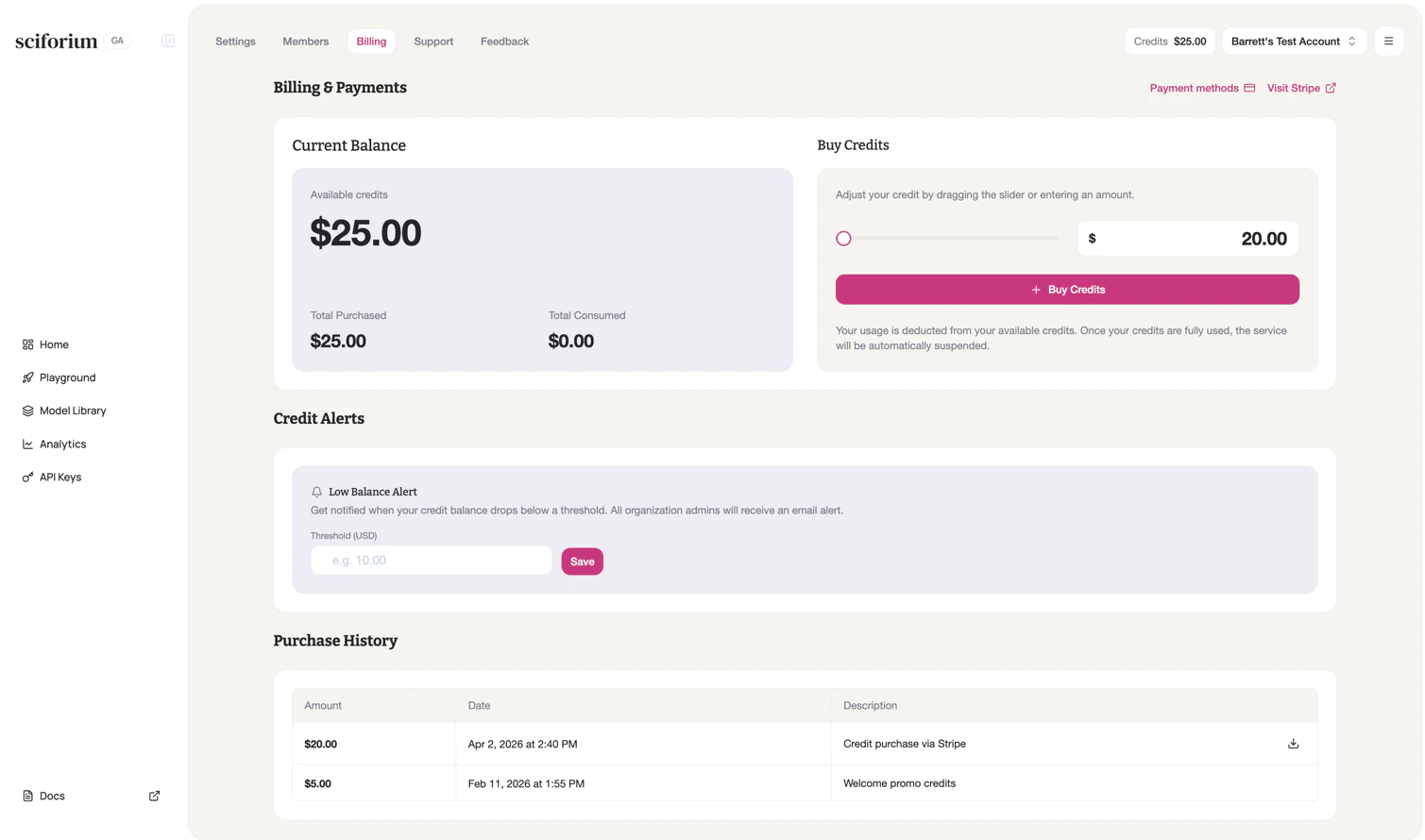
Sciforium uses a prepaid credits system. Credits are deducted as requests are processed, based on tokens consumed and GPU seconds used. Your current balance, total purchased, and total consumed are shown on the Billing page. Credits never expire once purchased.
Buying Credits
- Click Billing in the top navigation bar.
- In the Buy Credits panel, drag the slider or type a custom amount. Minimum purchase is $5.
- Click + Buy Credits and complete the Stripe checkout.
Purchase History
The Purchase History table shows all past transactions with amount, date, and description. Click the download icon on any row to save a receipt.Service Suspension Policy
When your credit balance reaches $0.00, API requests are automatically blocked and return a 402 error. Your account, keys, and data are not affected — service resumes as soon as you add credits.Quotas & Rate Limits
Sciforium enforces rate limits to ensure platform stability. Rate limits (fixed for all users):- Requests per minute (RPM): 60 requests per minute per API key
- Daily spend limit: Maximum credit spend per key per day
- Monthly spend limit: Maximum credit spend per key per month
Setting Budget Controls
- Open the settings for the key you want to limit from the API Keys dashboard.
- Set a daily spend limit, monthly spend limit, or both.
- Save. The limits take effect immediately.